Documentation
Overview
The dashboard home page shows a different view depending on your role: bloggers see their tasks and deadlines; brand owners see brand stats and quick links.
Use the News tabs to switch between platform (app) news and brand news. Brand news is created by your brand staff and appears when you have at least one brand.
Getting Started
Register with your Second Life name on BloggerNexus, log in via password or OTP (Access Code), and complete the first-login wizard to access the dashboard. The platform verifies your identity via Second Life.
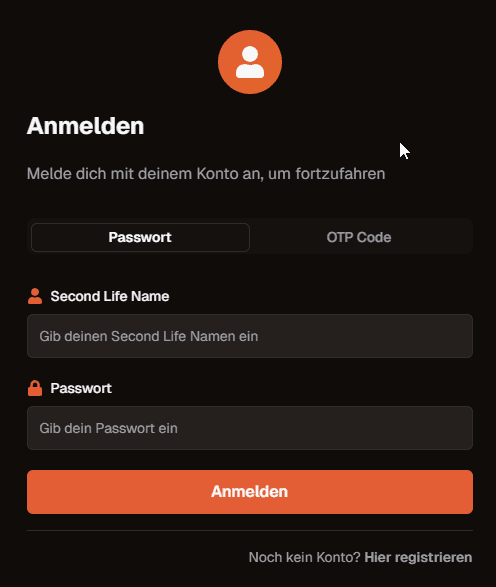
You can register as Brand Owner or Blogger. After login, the dashboard shows your overview, deadlines, and next steps depending on your role.
First-login wizard
After your first login you may see a short wizard that guides you through basic setup (e.g. role selection or profile). Complete it to access the full dashboard.
Create Brand
As a Brand Owner you can create your brand via the dashboard: use the "Create Brand" entry or the wizard. Enter brand name, slug, and optional details. Once created, you get the Brand Connector delivery in Second Life and can set up products and applicants.

For Brands (My Brand)
As a brand owner you manage your dashboard, products, applicants, blog posts, team, and settings. The Brand Connector in Second Life links your in-world setup to BloggerNexus for product delivery and usage payments.
Brand registration
Create your brand on BloggerNexus by registering as Brand Owner (e.g. via OTP/Access Code or in-world terminal). Enter brand name, slug, owner UUID and SL name, email, and password. After registration your brand is created and you get access to the brand dashboard. New brands can receive a free trial period for usage.
Brand Connector setup
Rez the Brand Connector in Second Life on land where you have permissions. The object registers its URL with BloggerNexus so the platform can send delivery and payment commands. Add your products to the same object (or linked "Products" prim) that contains the product-delivery script; products are scanned and listed in the dashboard. Keep the Brand Connector online so deliveries and payments work.
Usage payment
Pay for brand usage with Linden Dollars (L$) via the Brand Connector or a dedicated payment object in Second Life. The dashboard shows "Paid until" so you know when to extend. If payment lapses, the brand may be deactivated until you pay again. A free trial may apply when you first set up the brand.
Featured brand
Optionally pay for featured status so your brand is highlighted in the brand pool. Use the Featured Kiosk (or equivalent payment object) in Second Life to pay for 1, 2, 3, or 4 weeks. The dashboard shows "Featured paid until" instead of a simple yes/no.
Brand News
Create news and updates for your brand (Owner, Co-Creator, Manager). When you add a new product you can publish a universal "New product" news item. Brand news appears in the Overview for your bloggers.
Dashboard overview
Your brand dashboard shows key stats, recent activity, and quick access to products, applicants, and blog post submissions. Use it to see what needs attention.

Products
Add and manage products that bloggers can request. Products are linked to your Brand Connector inventory in Second Life via the product SL UUID (combobox in the product form). Each brand can create up to 15 custom categories; use standard or custom categories per product. New products show a "New" badge for 7 days. For assignments in Pending status you can trigger a redelivery to the blogger; the category is shown as a badge on the product card.

Applicants
Review blogger applications in a card layout. Open a detail modal (without task list) to see profile and answers. Approve or reject applications; the count in the menu reflects pending applications. Approved bloggers appear in Management.
Blog posts
List all blog post assignments for your brand; filter by blogger. Bloggers submit their post links; you review and set status to accepted, rejected, or review (with feedback). Release completed assignments. VIP bloggers have no deadline; others see a deadline. When a blogger submits, managers get an inbox notification.
Blogger management
Manage approved bloggers: set or remove VIP status (VIPs get unlimited product assignments and no deadlines). Approve or reject vacation requests. Remove a blogger from the brand; optionally add them to the brand blacklist with a reason (they cannot re-apply until removed from blacklist). Unblock a blogger who was blocked from product assignments. Open the detail modal to see assignments and stats.
Brand settings
Configure brand profile, logo, description, rules, product request limit (1–5 per blogger), default deadline days, and visibility in the brand pool. Use the Blacklist tab to remove bloggers from the blacklist. In the Second Life Connect tab you can trigger a Brand Connector redelivery. Optionally manage Managers and Co-Creators.
For Bloggers
As a blogger you can browse the blogger list (if you have brand access), invite other bloggers, explore the brand pool to apply to brands, and manage your area (tasks, product catalog, and vacation).
Blogger List
View all bloggers in a card list with rating; open a profile modal. As brand staff you can send an invite; the blogger receives an inbox message with Accept or Decline. When they respond, you get an inbox notification. Invites expire after a set period. Pagination is always visible.

Brand Pool
Discover brands that accept applications. Brand cards show description and requirements; open a modal to see details and a product slideshow. Apply with one click; your application appears in My Brands as Pending until the brand approves. The list supports pagination.

My Area
My Area groups your tasks (assignments), the product catalog (request products), and vacation. Use the sidebar or tabs to switch.
Tasks
See all your product assignments: Pending (awaiting delivery), Delivered (submit your blog post links), Submitted (under review), and Accepted. Use the redelivery button if a product was not received in Second Life. Submit blog post URLs and optional notes; VIP bloggers have no deadline, others see a deadline.

Product catalog
Browse products from your brands. Request a product to get it assigned and delivered; you are limited to 1–5 concurrent assignments per brand (VIP: unlimited). Products show as "New" for 14 days after you could have requested them. Filter by category; each card shows the brand logo.

Vacation
Request vacation by setting a from and to date. The brand can approve or reject. When approved, you are in vacation status and protected from assignment deadlines during that period.

User profile & settings
Your public profile is visible to brands and other bloggers when they view your card or profile modal: display name, avatar, bio, and social links. In user settings you can change your profile data, notification preferences, and account security. What you set here is what others see on your public profile.
What you can set
Profile tab
- Display name
- Profile picture (avatar)
- About me (bio, max. 500 characters)
- Social links: Discord username, Instagram, Facebook, Prim Feed, Flickr, and blog URL
These fields are part of your public profile.
Security tab
Change email address and password (each requires your current password for confirmation).
Settings
On the separate Settings page in the dashboard you can enable or disable your vacation period (from/until).

Communication
Use the Inbox for direct messages between you and other users. Use Team Chat for group communication with your brand team (staff and bloggers). Support Chat is available for all users to contact the Super Admin.
Inbox
Private one-to-one messages. Open a conversation from the member list and send text or attachments. Messages are delivered in real time.

Team Chat
Group channel for your brand. All team members and approved bloggers in the brand can see and send messages. Use it for announcements and team coordination.

Support Chat
Contact the Super Admin for technical or account support. All users (bloggers and brand staff) can open the Support Chat from the dashboard. Messages are private between you and the support team.
